A restaurant kitchen display system (KDS) only speeds up service when the workflow behind it is defined first. To set one up well, decide which station owns each item, how tickets are sequenced, what counts as a priority, when a ticket can be bumped, and who reviews exceptions after service. The screens just enforce those decisions.
What a KDS Should Control in Your Kitchen
A KDS replaces paper tickets, but its operational job is broader. Configure it to control:
- Routing: which items appear on which station screen.
- Sequencing: the order tickets display and when items fire.
- Ownership: who is accountable for a ticket at each stage.
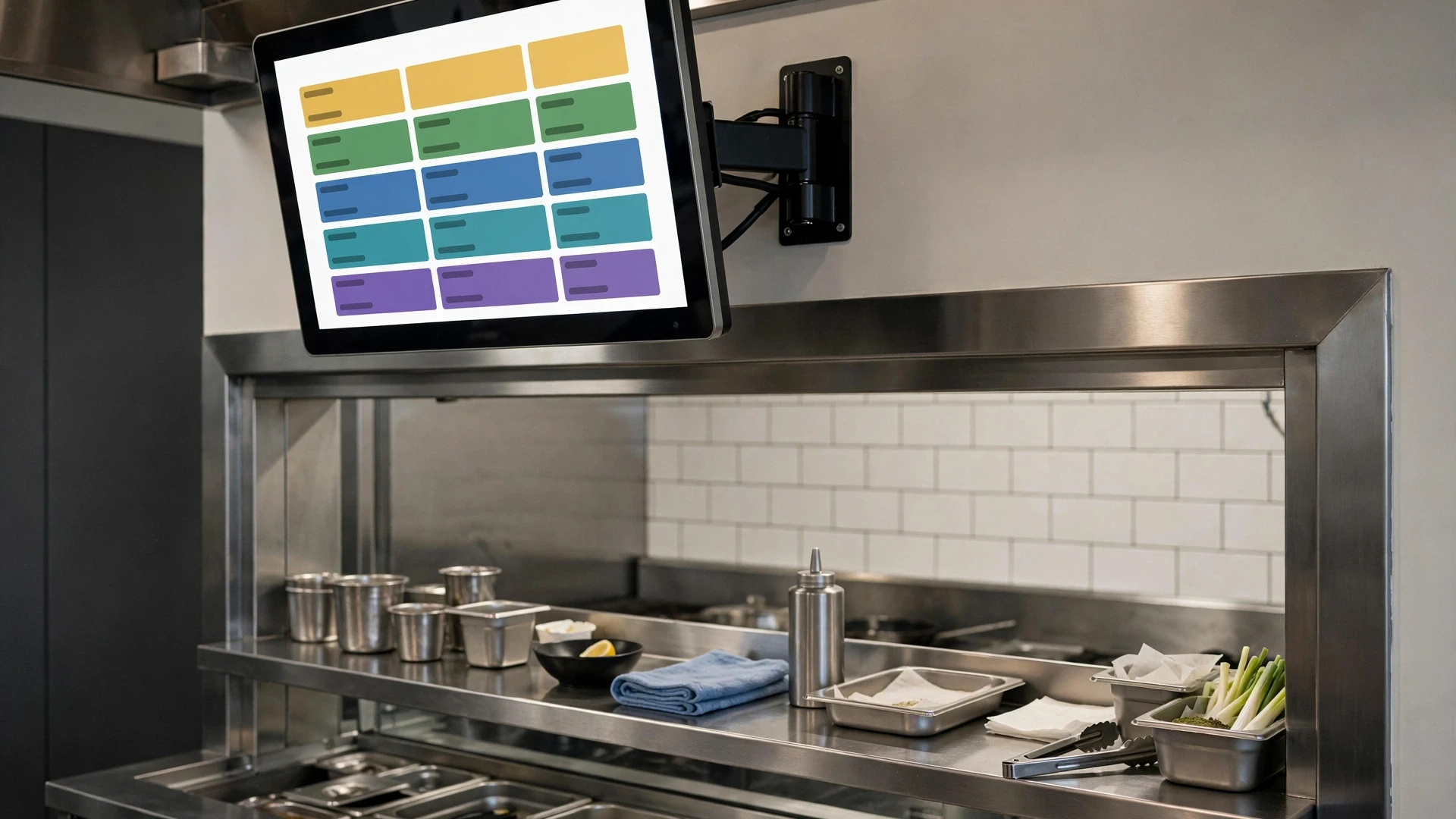
- Timing: color changes or alerts when a ticket ages past your target.
- Handoff: how finished items move to expo and out to the guest or driver.
- Data: ticket times and exceptions you can review later.
Routing depends on clean menu data coming from the point of sale. If items, modifiers, or order types are mapped inconsistently in the POS, the KDS will route them inconsistently too. Our restaurant POS integration guide covers that mapping step.
Station Routing and Ticket Ownership
Start with a simple map of every menu item to one primary station: grill, fry, sauté, cold, or bar. Items that need two stations, such as a burger with fries, should split so each station sees only its part, while expo sees the whole ticket.
Then assign ownership. A practical model: the station owns its items until bumped, and expo owns the full ticket from first item ready until it leaves the pass. Write this down so nobody assumes “the system” is responsible for a stalled order.
Setting Ticket Priority Rules
Default sequencing is usually first-in, first-out. Define deliberate exceptions instead of letting cooks reorder by instinct.
Rush and VIP Orders
Limit who can flag a rush, typically the manager or expo. If everyone can mark rush, nothing is a priority.
Delivery and Online Orders
Third-party and online orders should display their order type and promised pickup time. Fire them based on driver arrival or quoted time, not entry time, so food doesn’t sit in a bag. For packaging and checks, see our guide on restaurant delivery order accuracy.
Modifiers and Allergies
Show modifiers directly under the item, and make allergy notes visually distinct with a color or flag. Keep modifier text short and standardized in the POS so cooks read “NO ONION,” not a paragraph.
Course Timing
If you run courses, hold mains until appetizers are bumped or a server fires them. Otherwise, sync item fire times so long-cook items start first and everything finishes together.
Bump, Recall, and Expo Handoff
Bump rules: a station bumps an item only when it is plated and handed to the pass, not when it starts cooking. Bumping early corrupts your timing data.
Recall: train every cook to recall a ticket rather than rely on memory. Decide whether recalls reopen at the top of the queue or in their original position.
Expo: expo confirms the complete ticket, checks modifiers, and performs the final bump. That final bump should be your official ticket close time.
Timing Targets, Exception Codes, and Manager Review
There is no universal ticket time that fits every concept. Run your KDS for one to two weeks, pull your actual baseline by daypart and order type, then set yellow and red thresholds from that data. Our article on reducing slow kitchen ticket times explains how to work from that baseline.
Add a short list of exception codes, such as remake, 86’d item, wrong modifier, or guest change, so problems are recorded instead of explained away. Managers should review red tickets and exception codes after each shift and look for patterns by station.
Common KDS Failures and Fixes
KDS Setup Checklist
- ☐ Every menu item and modifier mapped to one station
- ☐ Split-ticket logic tested for multi-station items
- ☐ Ownership written down for stations and expo
- ☐ Rush permissions limited to named roles
- ☐ Delivery and online orders fire on promised time
- ☐ Allergy flags visually distinct
- ☐ Bump and recall rules trained and practiced
- ☐ Baseline collected before setting time thresholds
- ☐ Exception codes created and reviewed each shift
For worksheets that support this setup, browse the Restaurant Operator Lab tools.
7-Step KDS Rollout for One Service Period
- Export or list every active menu item and modifier from the POS.
- Assign each item to one primary production station and test split-ticket items.
- Define who can mark rush orders, who can bump, and who owns final expo close.
- Run test tickets for dine-in, takeaway, delivery, allergy notes, voids and remakes.
- Operate for a short baseline period before setting yellow and red timing thresholds.
- Review slow tickets and exception codes after each shift, then correct routing or process causes.
- Re-test the KDS after every meaningful menu, station or order-channel change.
The point is to make the screen reflect the real operating system, not to force the kitchen to work around software defaults.
Restaurant KDS FAQ
Should every station see the full ticket?
Usually no. Each production station should see the items it owns, while expo should see the complete order. Showing everything everywhere can create noise and unclear ownership.
When should a cook bump an item?
Use one written rule. A common operational choice is to bump when the item is finished and physically handed to the pass. Whatever rule you choose, apply it consistently so timing data remains useful.
How often should KDS routing be audited?
Audit it after menu changes, new modifiers, station changes or new ordering channels, and investigate any repeated misroutes as soon as they appear.
Measure KDS Performance With a Small Set of Useful Metrics
A KDS creates a large amount of timing data, but managers do not need a dashboard full of numbers. Start with a few measures that connect directly to operating decisions.
- Average ticket time: total completed-ticket minutes divided by completed tickets for the same daypart or order channel.
- Percent over target: tickets that exceeded the agreed threshold divided by total completed tickets.
- Remake rate: remade items or tickets divided by total items or tickets served, using one consistent definition.
- Station delay share: slow tickets linked to one station divided by all slow tickets reviewed.
- Expo hold time: the gap between the first item ready and the final ticket leaving the pass when your system exposes that timestamp.
Do not compare unlike periods. A Friday dinner delivery ticket and a Tuesday lunch dine-in ticket may have different operating constraints. Compare the same order type, daypart and menu mix before deciding that performance improved or deteriorated.
For example, if 240 dinner tickets are completed and 38 exceed the restaurant’s chosen threshold, the over-target rate is 15.8%. If 24 of those 38 slow tickets involve the sauté station, management has a more specific problem to investigate than simply saying “the kitchen is slow.”
Separate Dine-In, Takeaway, and Delivery Logic
One of the most common KDS design mistakes is forcing every order channel through the same timing logic. The kitchen may prepare the same food, but the handoff conditions are different.
Dine-In
Dine-in timing is usually driven by table sequence, course timing and synchronized plate completion. Expo needs visibility across the whole ticket so one station does not finish five minutes ahead of another.
Takeaway
Takeaway needs a clear promised-ready time plus a packaging handoff. If the order is fired too early, quality falls while food waits. If it is fired too late, the guest waits at the counter.
Delivery
Delivery introduces driver timing and third-party platform promises. A useful setup shows the order channel clearly and gives managers a way to distinguish kitchen delay from driver delay. Do not let a late driver make kitchen ticket-time data look worse than it really is.
If the KDS allows separate views or filters, use them. If it does not, build channel labels into the ticket itself and review the channels separately after service.
Train the Team Around Behaviors, Not Screen Features
KDS training often fails because the rollout focuses on buttons and colors instead of the operating behavior each action represents. A cook can learn where the bump button is in five minutes and still corrupt the system by bumping too early.
For each role, define three things: what they are allowed to do, when they should do it, and what should happen when something goes wrong.
| Role | Core KDS responsibility | Escalate when |
|---|---|---|
| Station cook | Produce owned items and bump only when handed off | Item, modifier or routing is unclear |
| Expo | Coordinate full-ticket completion and final close | One station repeatedly blocks completion |
| Manager | Control overrides, review exceptions and correct process causes | System data and actual floor behavior disagree |
Run live simulations before the first busy service: allergy modifier, void, remake, delivery order, large party, rush request and recalled ticket. The goal is not to prove the software works. The goal is to prove that every role knows what to do when normal flow breaks.
Run a 30-Day KDS Review Instead of Treating Setup as Finished
The first configuration is a starting point. Menu mix, staffing and real service pressure will expose routing and sequencing problems that are difficult to see in a test environment.
- Week 1: collect a clean baseline. Fix obvious mapping errors but avoid changing timing targets every shift.
- Week 2: review slow-ticket concentration by station, daypart and order channel.
- Week 3: adjust routing, modifier wording, fire logic or staffing where the data and floor observations point to the same cause.
- Week 4: compare the new results with the original baseline using the same definitions.
Document every configuration change. If ticket time improves after three settings are changed at once, you will not know which change mattered. Change one operating rule at a time when practical, then watch the result over enough service periods to avoid reacting to one unusually easy or difficult shift.
A mature KDS workflow should make problems easier to diagnose. If managers still rely mainly on memory and post-shift opinions, the system is collecting data without turning it into operational control.
Questions to Answer Before You Change KDS Configuration
- Is the problem a true production delay or only a reporting/timestamp problem?
- Does it occur across all dayparts or only one service window?
- Is one station responsible for most exceptions?
- Did the problem begin after a menu, modifier, POS or delivery-channel change?
- Are cooks following the written bump rule consistently?
- Is expo closing tickets at the correct point in the handoff?
- Would a staffing or prep change solve the issue better than a software change?
These questions help prevent a common mistake: using configuration changes to hide a process problem. A KDS can expose poor prep, unclear ownership or bad menu mapping, but it cannot fix those causes on its own.
Manager Takeaway
Define routing, ownership, and priority rules before you trust the screens. Then let your own baseline set the targets, review exceptions every shift, and change the workflow only when the data and floor behavior point to the same cause.